
- PRODUCTSFREEWAREFOR COMMERCIAL USEFOR PERSONAL AND BUSINESS USEBackup and System Restore:PC Privacy and Security:
- BUY ONLINE
- DISTRIBUTION


-
Installation, Activation and Uninstallation instructions for R-Studio T80+ licenses (Mac)


- R-Studio T80+ licenses for Mac, Windows, and Linux, are sold separately and are not interchangeable. A purchased license can only be used on a computer running the same operating system (OS) for which the license was acquired. However, you can use the same registration key to activate the R-Studio Technician Emergency version, which allows you to run the software on a serviced computer, regardless of the installed OS. Note that the following instructions specifically apply to the R-Studio for Linux T80+ license and do not pertain to R-Studio for Mac Technician or R-Studio for Mac Standalone.
- The R-Studio T80+ license requires activation every time the software is launched, and a new data recovery session begins. This activation needs an Internet connection, which can be established either directly on the computer where the software is installed or indirectly using a QR code and a smartphone. There are no exceptions to this requirement; alternative activation via USB sticks is offered for the R-Studio Technician license only.
- If you have purchased the incorrect license or have any concerns about the software's functionality or licensing terms, it is essential that you contact us before activating the license on the first serviced computer.
- You can download the R-Studio Technician/T80+ setup files compatible with the purchased license from our "My Order" portal.
Installation
1. Double-click the downloaded installation file.
2. Move R-Studio.app to the Applications folder
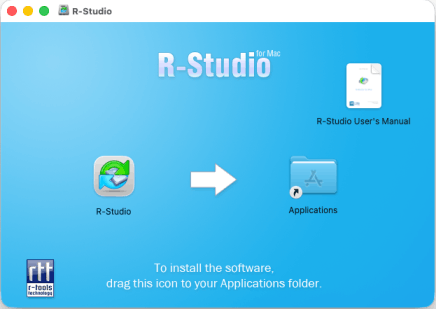
Click image to enlarge
You can begin using the program as soon as the installation is finished.
Registration/Activation:
- By default, R-Studio T80+ and its Emergency version require activation every time the software is launched and a new data recovery session starts. This activation needs an Internet connection, either directly for the computer where R-Studio is installed, or indirectly using a QR code and a smartphone. To avoid the need for an Internet connection, you can switch to the activation via USB sticks option. When such a stick is inserted, R-Studio T80+ automatically detects it, reads the license data, and activates without connecting to the Internet.
- With an R-Studio T80+ license, you are allowed to service an unlimited number of computers. However, it is essential to complete any data recovery session on a single computer before transferring the license to a different one. If you do not complete the session, you will not be able to activate the license on a new computer.
- Please note that R-Studio software does not transmit your data to R-TT, except for the information outlined in our R-TT privacy policy.
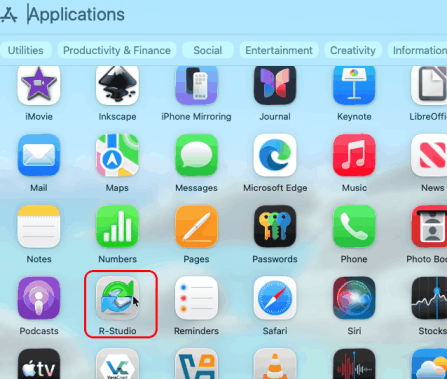
Go to Applications and double-click R-Studio to start the program.
Click image to enlarge
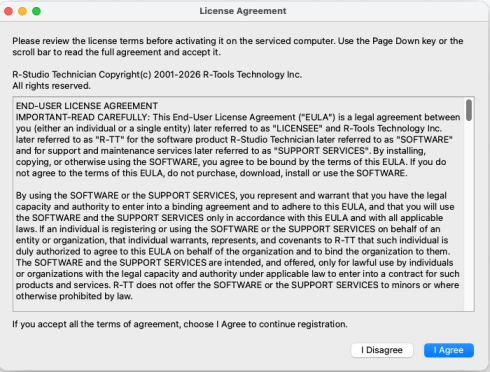
When you start R-Studio for the first time its License Agreement will appear
Click image to enlarge
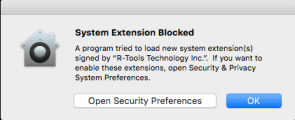
When you start R-Studio for the first time on a Mac computer with Apple Silicon running under macOS Ventura and higher, a System Extension Blocked warning message will appear.
Click image to enlarge
At the same time R-Studio will throw its own message:
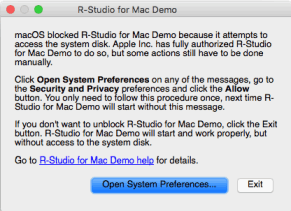
Click image to enlarge
If you need access to your system disk, click the Open System Preferences button on any of the messages, go to the Privacy & Security preferences, select App Store and identified developers in the Security section.
The To enable system extensions, you need to modify your security settings in the Recovery environment message will appear.
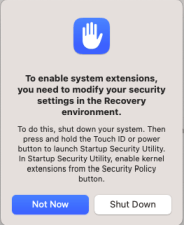
Click image to enlarge
Wait until you Mac is completely off and restart it to macOS Recovery Mode.
1. Quickly press the Touch ID or power button and then quickly hold it until the Loading up startup options message will appear on the screen.
2. Click Options and then click Continue.
In Startup Security Utility, select Reduced Security and then Allow user management of kernel extensions from identified developers.
3. Click the OK button and then restart your computer.
4. Upon restart, go to the go to the Privacy & Security preferences again and click the Enable System Extensions... button in the Security section.
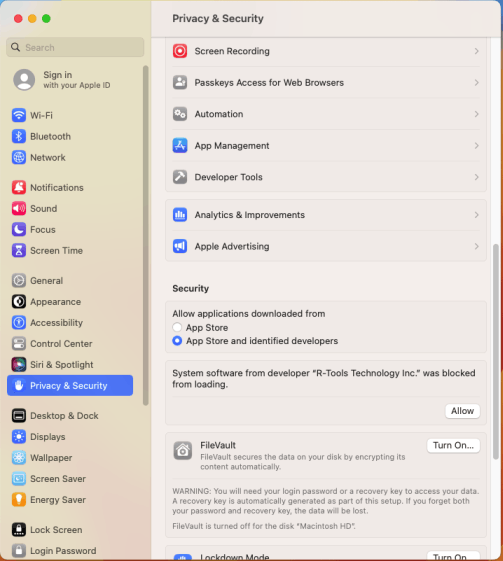
Click image to enlarge
And restart computer.
R-Studio will start with full access to your system disk. You need to follow this procedure only once, next time R-Studio will start without these messages.
If you don't want to unblock R-Studio, click the Exit button on the R-Studio's message. R-Studio will start and work properly, but without access to the system disk and when you start R-Studio next time, its message will appear again. You will be able to unblock the program if needed.
When you start R-Studio for the first time, a System Extension Blocked warning message will appear.
Click image to enlarge
At the same time R-Studio will throw its own message:
Click image to enlarge
If you need access to your system disk, click the Open Security Preferences button on any of the messages, go to the Security and Privacy preferences, and click the Allow button.
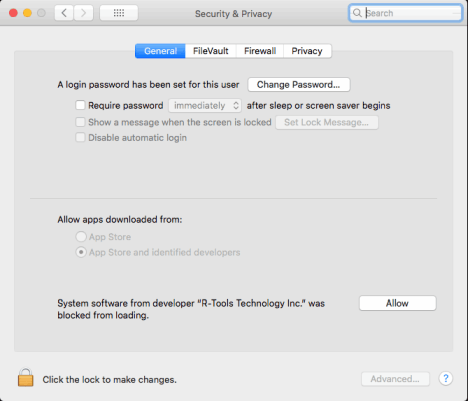
Click image to enlarge
R-Studio will start with full access to your system disk. You need to follow this procedure only once, next time R-Studio will start without these messages.
1. Once the software is unblocked, access our email with the registration key and its copy attached in a .txt file. Open the attachment, then select and copy the key. You can also copy the key directly from the message, but sometimes the mail server may corrupt it.
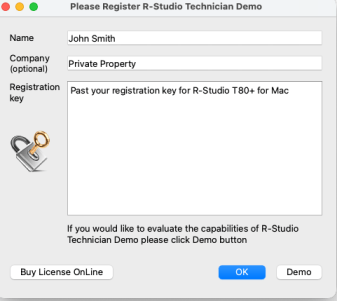
The Please Register R-Studio Technician Demo window will appear.
 Click image to enlarge
You may register your copy of R-Studio if you already have a registration key, or continue in Demo mode if you want to estimate chances for successful data recovery. You may register your Demo version later on-the-fly without restarting the program
Please note that R-Studio software does not transmit your data to R-TT, except for the information outlined in our R-TT privacy policy.
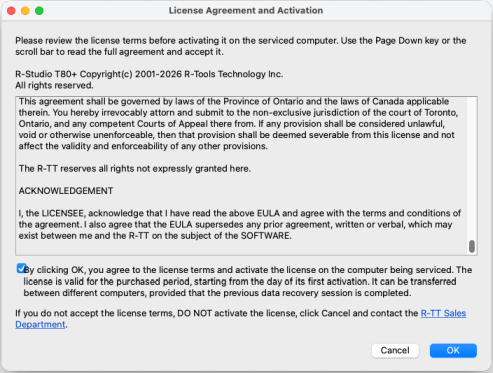
2. Select the checkbox on the License Agreement and Activation window and click the OK button.
 Click image to enlarge
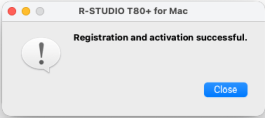
Then the Registration and activation successful window will appear.
 Click image to enlarge
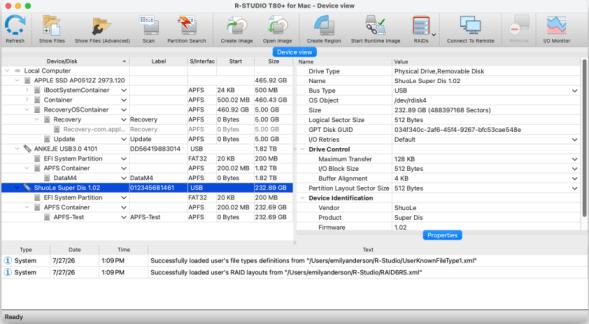
And R-Studio T80+ for Mac will work in its full capacity.
Click image to enlarge
If the software is running in Demo mode or needs re-registration, access the registration window through the Help > Register menu.
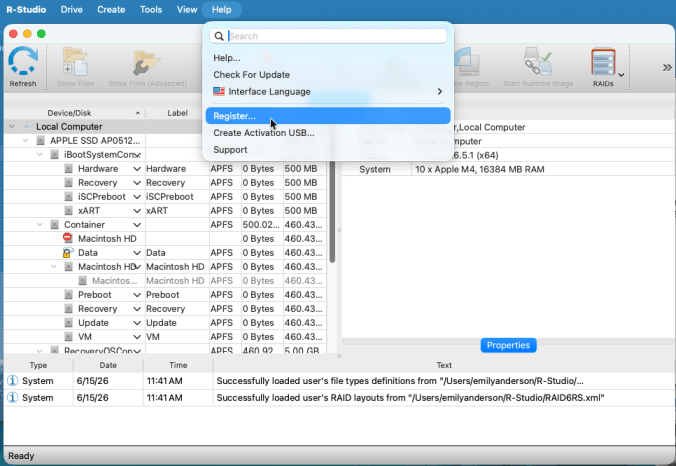 Click image to enlarge
If the computer to be licensed is offline, the R-Studio Technician Online Activation dialog box will appear.
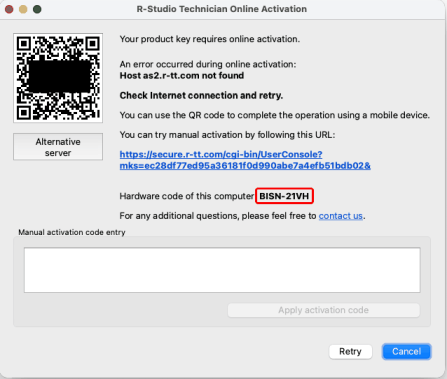 Click image to enlarge
You can either copy and use the provided URL on another device connected to the Internet, or scan the QR code with a smartphone to get the activation code and enter it to complete the activation.
3. You can verify whether the activation was successful and see which license is tied to the hardware code of the licensed computer in the software's About window (Help>About).
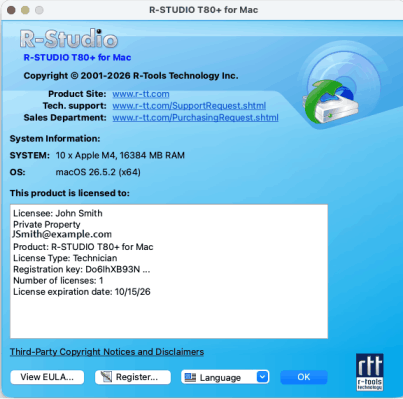 Click image to enlarge
Note that if you need to register R-Studio T80+ on another computer, which you are allowed to do, you need to close all data recovery sessions on the old one.
The R-Studio Emergency license is included with the R-Studio T80+ license. To learn how to create an R-Studio Emergency Startup Device and activate it, please review our article "Emergency File Recovery".
The R-Studio Agent and R-Studio Agent Emergency licenses are part of the R-Studio T80+ license. Detailed instructions for their use and activation can be found on our pages "Data Recovery over Network" and "Emergency Data Recovery over Network".
Uninstallation
Right-click the R-Studio application in the Applications folder and select Move to Trash.
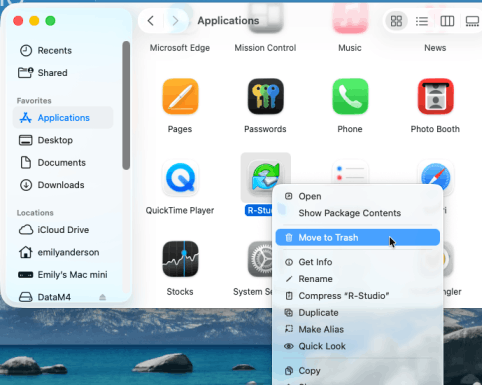 Click image to enlarge
- R-Studio Technician: activation using a USB stick
- Data Recovery Guide
- Why R-Studio?
- R-Studio for Forensic and Data Recovery Business
- R-STUDIO Review on TopTenReviews
- File Recovery Specifics for SSD devices
- How to recover data from NVMe devices
- Predicting Success of Common Data Recovery Cases
- Recovery of Overwritten Data
- Emergency File Recovery Using R-Studio Emergency
- RAID Recovery Presentation
- R-Studio: Data recovery from a non-functional computer
- File Recovery from a Computer that Won't Boot
- Clone Disks Before File Recovery
- HD Video Recovery from SD cards
- File Recovery from an Unbootable Mac Computer
- The best way to recover files from a Mac system disk
- Data Recovery from an Encrypted Linux Disk after a System Crash
- Data Recovery from Apple Disk Images (.DMG files)
- File Recovery after Re-installing Windows
- R-Studio: Data Recovery over Network
- How To Use R-Studio Corporate Package
- Data Recovery from a Re-Formatted NTFS Disk
- Data Recovery from an ReFS disk
- Data Recovery from a Re-Formatted exFAT/FAT Disk
- Data Recovery from an Erased HFS Disk
- Data Recovery from an Erased APFS Disk
- Data Recovery from a Re-Formatted Ext2/3/4FS Disk
- Data Recovery from an XFS Disk
- Data Recovery from a Simple NAS
- How to connect virtual RAID and LVM/LDM volumes to the operating system
- Specifics of File Recovery After a Quick Format
- Data Recovery After Partition Manager Crash
- File Recovery vs. File Repair
- Data Recovery from Virtual Machines
- How to Recover Files from a Remote Computer Using R-Studio Standalone License and Its Network Capabilities in Demo Mode
- How to Connect Disks to a Computer
- Emergency Data Recovery over Network
- Data Recovery over the Internet
- Creating a Custom Known File Type for R-Studio
- Finding RAID parameters
- Recovering Partitions on a Damaged Disk
- NAT and Firewall Traversal for Remote Data Recovery
- Data Recovery from an External Disk with a Damaged File System
- File Recovery Basics
- Default Parameters of Software Stripe Sets (RAID 0) in Mac OS X
- Data Recovery from Virtual Hard Disk (VHD/VHDX) Files
- Data Recovery from Various File Container Formats and Encrypted Disks
- Automatic RAID Parameter Detection
- IntelligentScan Data Recovery Technology
- Multi-pass imaging in R-Studio
- Runtime Imaging in R-Studio
- Linear Imaging vs Runtime Imaging vs Multi-Pass Imaging
- USB Stabilizer Tech for unstable USB devices
- Joint work of R-Studio and PC-3000 UDMA hardware
- Joint work of R-Studio and HDDSuperClone
- R-Studio T80+ - A Professional Data Recovery and Forensic Solution for Small Business and Individuals Just for 1 USD/day
- Backup Articles
- R-Drive Image Standalone and Corporate license transferring
- Fixing Windows update error 0x80070643 with R-Drive Image
- Backup with Confidence
- R-Drive Image as a free powerful partition manager
- Computer Recovery and System Restore
- Disk Cloning and Mass System Deployment
- Accessing Individual Files or Folders on a Backed Up Disk Image
- R-Drive Image startup / bootable version
- File Backup for Personal Computers and Laptops of Home and Self-Employed Users
- Creating a Data Consistent, Space Efficient Data Backup Plan for a Small Business Server
- How to Move the Already Installed Windows from an Old HDD to a New SSD Device and Create a Hybrid Data Storage System
- How to Move an Installed Windows to a Larger Disk
- How to Move a BitLocker-Encrypted System Disk to a New Storage Device
- How to backup and restore disks on Linux and Mac computers using R-Drive Image
- R-Drive Image and Virtual Machines
- Undelete Articles
- Get Deleted Files Back
- Free Recovery from SD and Memory cards
- R-Undelete: Video Recovery
- Recovery from an External Device with a Damaged File System
- File recovery from a non-functional computer
- Free File Recovery from an Android Phone Memory Card
- Free Photo and Video File Recovery Tutorial
- Easy file recovery in three steps